
Tracking Payments
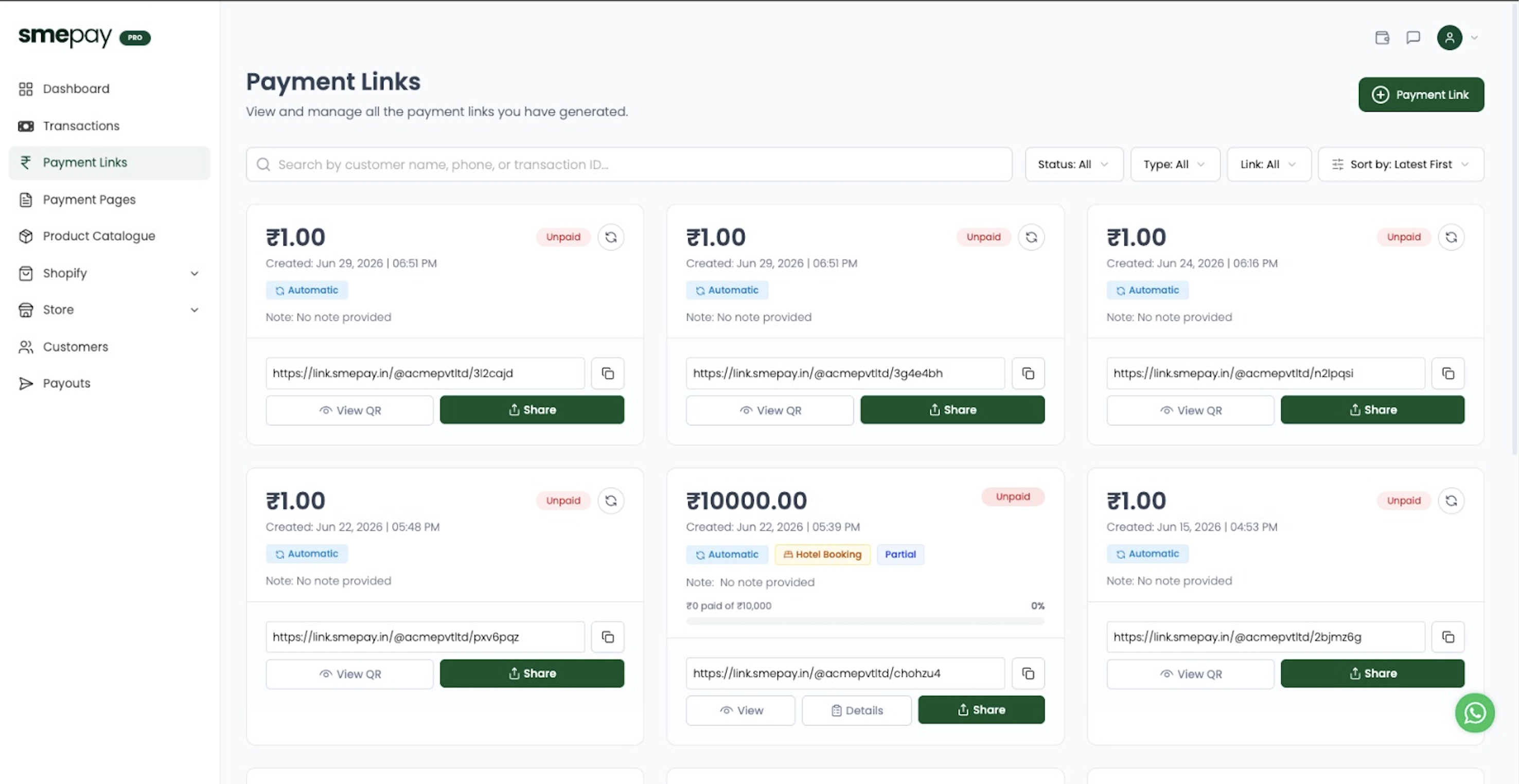
The Payment Links page allows you to view and manage all the payment links you have generated.
Payment Statuses
Understanding the status of your payment link is crucial for managing your revenue.
| Status | Meaning |
|---|---|
| Unpaid | Customer has not paid yet |
| Paid | Payment completed successfully |
| Partial | Partial amount received |
| Expired | Payment request expired |
| Failed | Payment attempt unsuccessful |
Understanding Payment Cards
Each payment card on your dashboard contains vital information:
- Amount: The total requested value.
- Status: The current state of the payment (Unpaid, Paid, etc.).
- Created Date: When the link was generated.
- Payment Type: Whether this was a manual link or automatic.
- Notes: Your internal description or purpose.
- Generated URL: The exact link sent to the customer.
- Share Actions: Quick buttons to copy or send the link.
Actions Available
For each payment link, you can perform several actions:
- Copy Link: Click the copy icon next to the URL to copy the link to your clipboard.
- View QR: Open the unique QR code for this specific payment link.
- Share: Quickly share the link via various messaging or social platforms.
Refreshing Payment Status
If a customer recently paid and you want to double-check, click the refresh icon on the payment card to update the payment status immediately from the bank network.
Filtering and Searching
Instead of scrolling through hundreds of links, you can find exactly what you need using the search bar (by customer name, phone, or transaction ID) or by applying detailed filters:
Status Filter
- All
- Paid
- Unpaid
- Partial
- Failed
Type Filter
- Automatic
- Manual
Link Filter
- Active
- Expired