
Managing Orders & Inventory
Once you have created Product Links and shared them with your customers, you need a way to track your sales and fulfill orders. SMEPay provides a dedicated Orders dashboard.
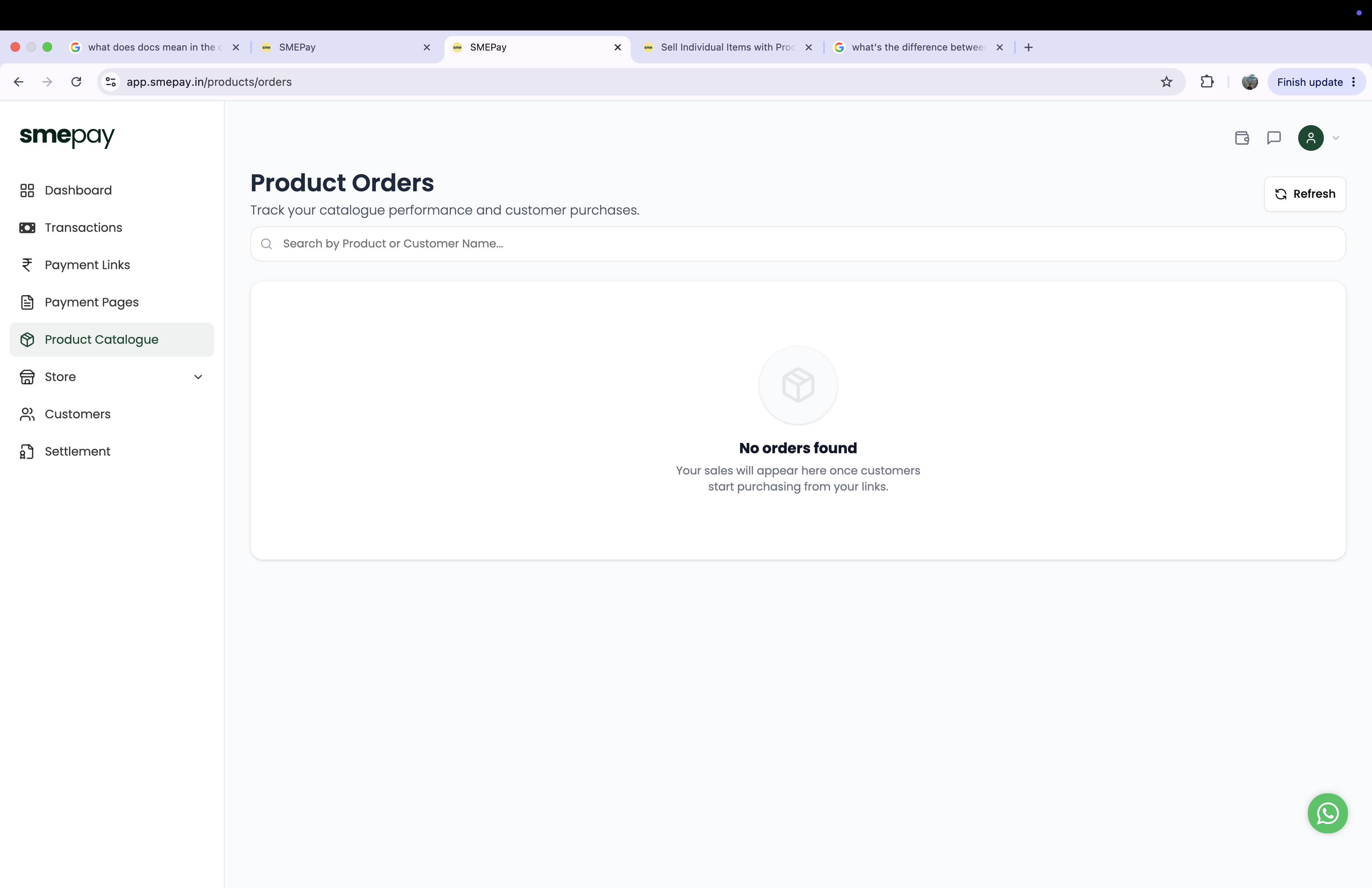
Accessing Your Orders
From the main Product Catalogue page, click the Orders button in the top right corner.
This will open the Product Orders dashboard where you can:
- Search: Quickly find specific orders by typing the Customer's Name or the Product Name into the search bar.
- View Order Details: See exactly who bought what, and when.
- Fulfill Shipping: Since Product Links require customers to enter their shipping address, this dashboard gives you everything you need to pack and ship the physical items.
Tracking Inventory
SMEPay handles inventory sync automatically!
On your main Product Catalogue dashboard, each product card displays its current Stock remaining.
- When an order is successfully paid for, the stock count drops automatically.
- You can use the quick filters at the top of the dashboard (All, In Stock, Out of Stock) to easily see which items need to be replenished.
- Once a product hits
0stock, the payment link will automatically stop accepting new orders to prevent overselling.